Make every screen easier to understand.
Install MondoCue before your trip. Translate the screen you’re looking at, get a plain-language explanation, and see what to do next.
We’re improving the Android app. Stay tuned.
Latest Android APK · Version 0.3.48The installer is signed by MondoCue and connects to your MondoCue account. You can choose a pass on this website or in the app; access follows your email across supported MondoCue apps.
Compatibility checked on Android 11–17 (API 30–37), including representative tablet and foldable emulator profiles. Device settings and background behavior can vary by manufacturer.
Direct download, not Google Play. Android will ask you to allow your browser to install this app. Future in-app updates may also ask you to allow MondoCue to install apps from this source. You can turn either permission off again in Android Settings.
SHA-256: e77c53755b3d06cb13f9fb78744bf8c2d5ca84a60fad74fd4456ca3886c2d8db · Download checksum
iOS
MondoCue for iPhone is now available on the App Store. Install it to make unfamiliar screens easier to understand.
Install MondoCue, then follow the steps below to set up iPhone Quick Access.
iPhone · one-time setup
Set up iPhone Quick Access
Set this up once, then double-tap the back of your iPhone to run the shortcut from another app.
Settings shown are from iOS 26.5. Menu names may vary slightly by version.
After installing MondoCue, add its ready-made shortcut, then open Settings → Accessibility → Touch → Back Tap → Double Tap → Shortcuts → Explain Screen; tap Back Tap at the top left to save. Sign in on Passes before your first analysis; the shortcut uses your account’s analysis allowance.
-
01
Add the ready-made shortcut
After installing MondoCue, open the iCloud shortcut page and tap Add Shortcut.
Open the ready-made shortcut on iCloud →If the “Screenshot” prompt is blank, cancel, remove Explain Screen from Back Tap, add it again from this link, then select the new copy. If MondoCue says it received the screenshot but couldn’t read it, cancel and use the screenshot sharing option below.
Use Explain Screen as the final shortcut action. After the app update, Back Tap opens MondoCue and analyzes the captured screenshot there. Your Back Tap assignment stays the same.

-
02
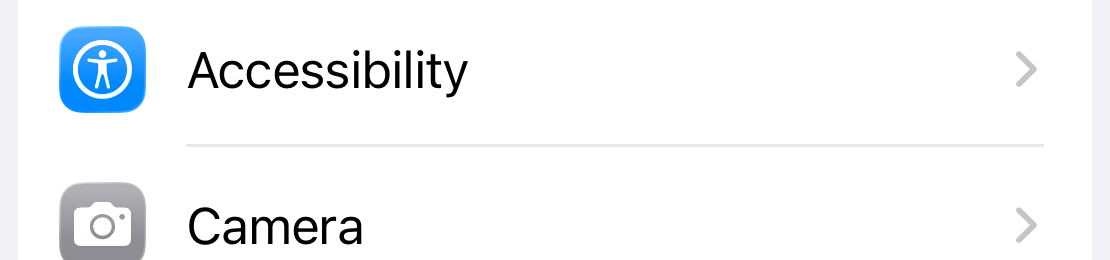
Open Accessibility
Open Settings and tap Accessibility.
-
03
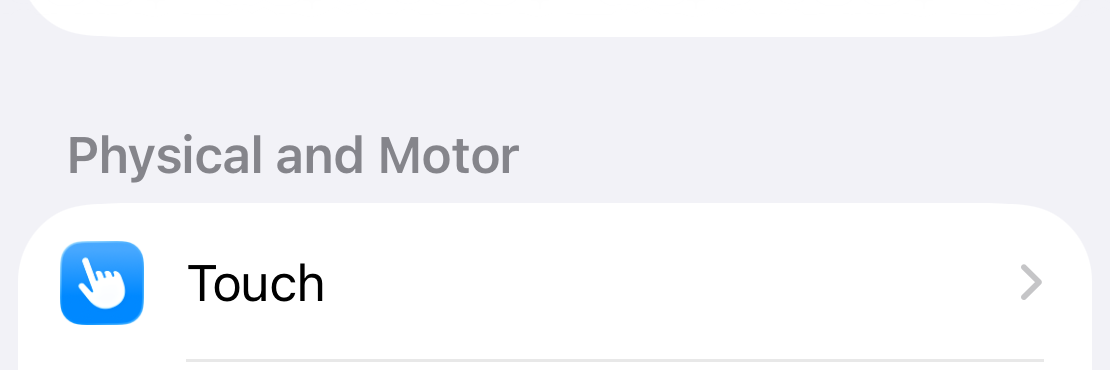
Tap Touch
On the Accessibility page, tap Touch.
-
04
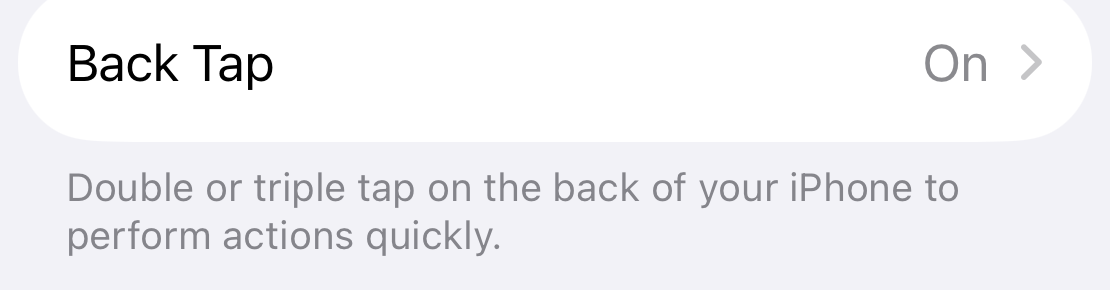
Tap Back Tap
On the Touch page, scroll down and tap Back Tap.
-
05
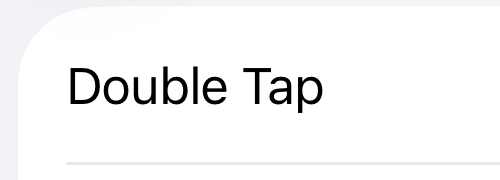
Choose Double Tap
On the Back Tap page, tap Double Tap.
-
06
Select Explain Screen
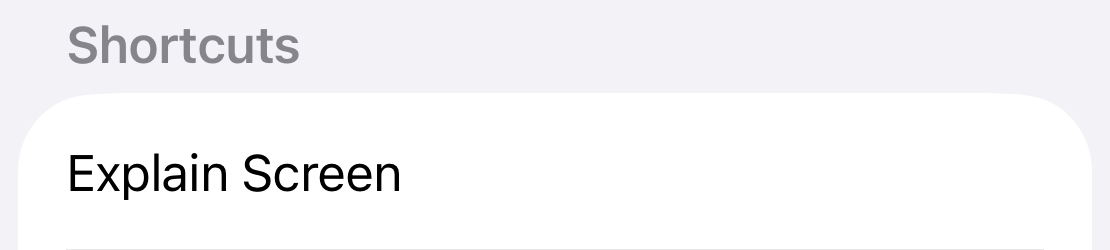
Scroll to Shortcuts and tap Explain Screen. Then tap Back Tap at the top left to return.
Open a public, non-sensitive screen in another app and double-tap the iPhone back. By default, confirm before the screenshot is uploaded; Cancel stops that run. MondoCue then opens, analyzes the screenshot, and shows the full guide. Tap Done to close it and return to your previous app.
Ask a follow-up question directly from the MondoCue guide. It reuses the same screenshot, so you do not need to run Back Tap again.
To skip confirmation each time, open MondoCue → Quick Access and enable “Send each screenshot automatically.” Each shortcut run then sends its screenshot immediately.
Install in a minute
Want to see what the floating guide does? Read how to translate an app screen on Android.
- Download the APK on your Android phone and open it.
- If Android asks, open Settings from the prompt and allow installs from your browser.
- Return to the installer, tap Install, then open MondoCue and sign in with your email.
- Choose your response language, enable the floating guide when prompted, and tap it on a screen you want explained.
- Download and install MondoCue while you have a reliable connection.
- Sign in, choose your response language, and enable the floating guide.
- Try it on a non-sensitive screen before relying on it on the go.
MondoCue sends the screen you choose to analyze to its server and an AI provider. Some secure screens block capture. Review the Privacy Policy and avoid screens with passwords, payment details, or other sensitive information.